
The Tech Pack Wizard plugin panel has two main views, each designed for a different stage of the tech pack workflow:
- Flats View
- Tech Pack View
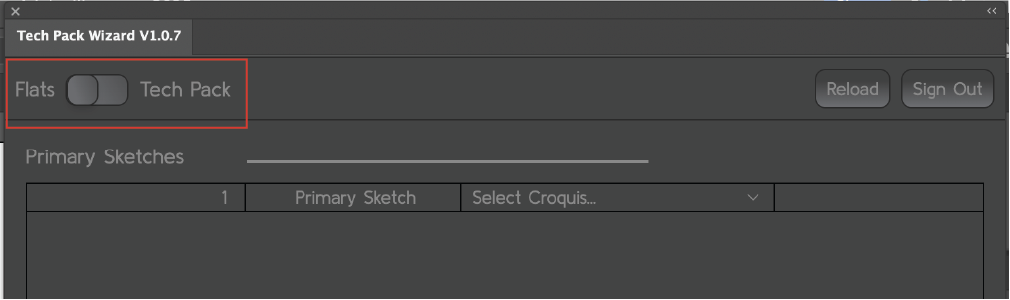
You can switch between these views at any time using the toggle at the top of the plugin panel.
Flats View
The Flats View is where all sketch-related work happens. This is where you create and manage your linked sketches and add technical details to your design.
In the Flats View, you can:
- Add and manage Primary Sketches (PS)
- Create and work with Detail Sketches (DS)
- Access tools for annotations, including:
- Spec POMs
- Callout lines
- Open libraries used during sketching
- Access the Size Range Admin
Flats Panel Layout:
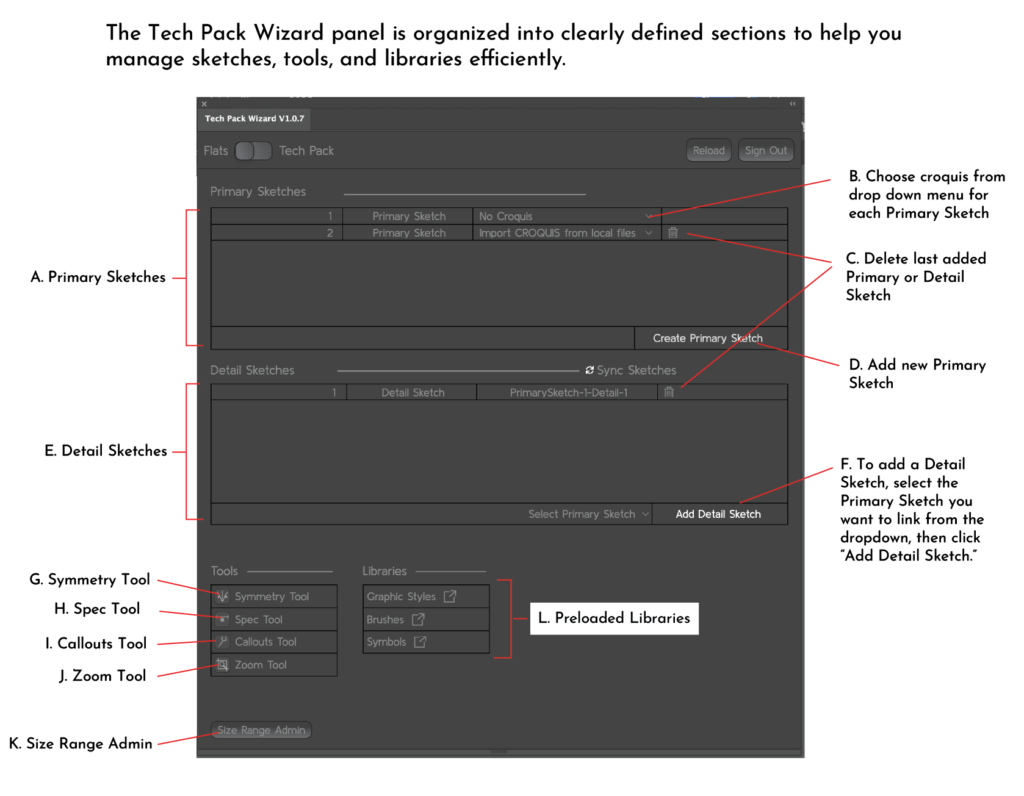
A. Primary Sketches: This section displays all Primary Sketches in your file. Each Primary Sketch serves as the main reference for linked Detail Sketches.
B. Croquis Dropdown List: Use the dropdown menu to assign a pre-loaded croquis to each Primary Sketch, or import your own croquis for sketching.
C. Delete Sketch: Deletes the most recently added Primary or Detail Sketch.
D. Create Primary Sketch: Click this button to add a new Primary Sketch to the list.
E. Detail Sketches: This section displays all Detail Sketches linked to their corresponding Primary Sketches.
F. Add Detail Sketch: To add a Detail Sketch, select the Primary Sketch you want to link from the dropdown menu, then click “Add Detail Sketch.”
G. Symmetry Tool: Automatically mirrors strokes and shapes while sketching to create perfectly symmetrical drawings.
H. Spec Tool: Use this tool to add and manage specification points directly on your sketches.
I. Callouts Tool: Create callouts to annotate construction details, materials, or special notes directly on your sketches.
J. Zoom Tool: Quickly zoom in and out of sketches for detailed editing and review.
K. Size Range Admin: Manage size ranges and sample size information used throughout the tech pack.
L. Preloaded Libraries: Access preloaded Graphic Styles, Brushes, and Symbols to maintain consistency and speed up your workflow.
Tech Pack View
The Tech Pack View is where the full tech pack is organized and reviewed.
In the Tech Pack View, you can:
- View and manage all tech pack pages
- Edit global information that appears at the top of every tech pack page
- Review the tech pack as a complete document
- Export to PDF or XLSX
Tech Pack Panel Layout:
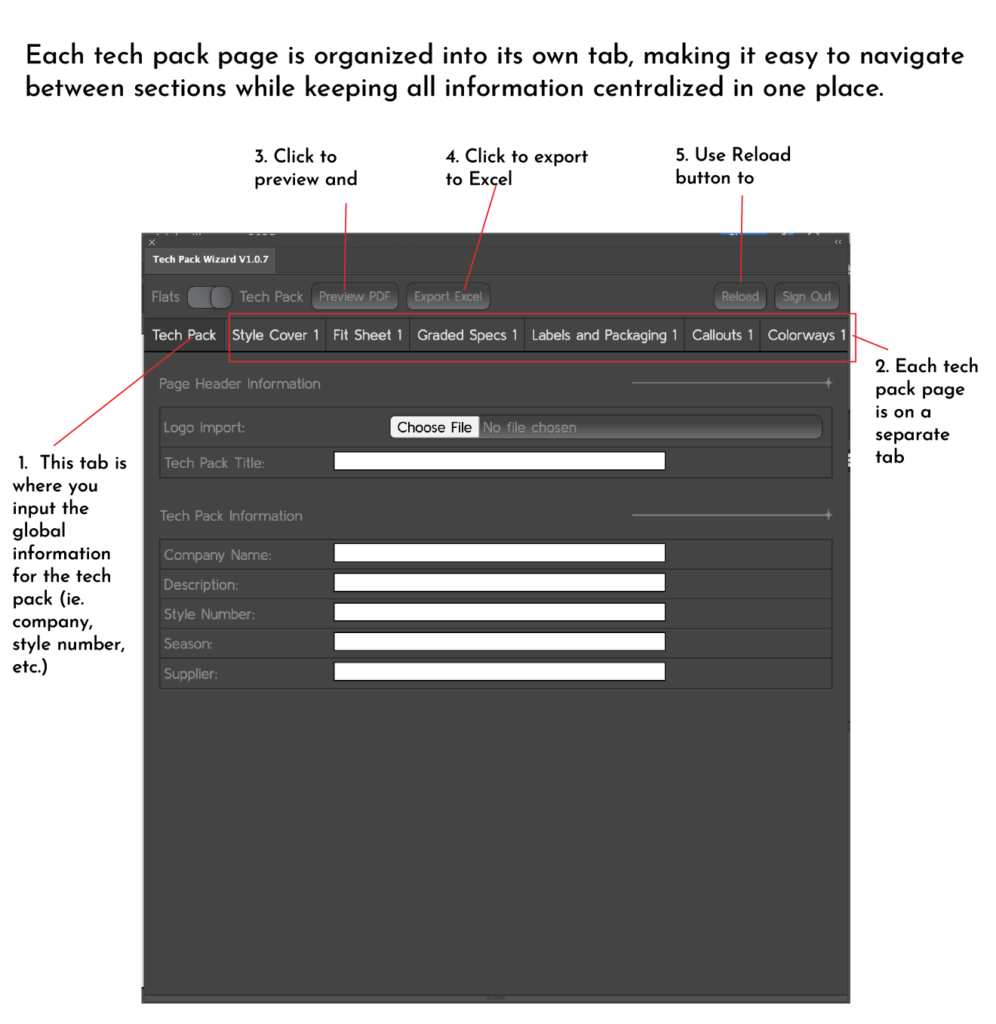
1. The Tech Pack tab contains global header and identification information for the tech pack, such as branding and style-level details. This information appears at the top of each tech pack page and helps identify the style at a glance.
2. Tech Pack Pages (Tabs): Each section of the tech pack is displayed on its own tab, allowing you to move between pages without switching files or artboards. Tabs include:
- Style Cover – Overview and visual reference for the style
- Fit Sheet – Fit notes and revision tracking
- Graded Specs – Measurement specifications across sizes
- Labels and Packaging – Label placement and packaging details
- Callouts – Construction and detail callouts
- Colorways – Color variations for the style
- Bill of Materials – Chart of all materials and trims needed for the style
Keeping each page on a separate tab helps maintain clarity, reduce duplication, and streamline updates across the tech pack.
Switching Between Views
Use the Flats / Tech Pack toggle at the top of the plugin panel to move between sketching and documentation.
You can switch views at any time without losing work.