
The results were more surprising than I expected.
I built Tech Pack Wizard to help designers gain back more control of their time.
But I wanted to know the exact numbers, not a rough guess. So I decided to do a timed experiment with controlled conditions.
I pre-planned all the information for a tech pack. I pre-sketched my front and back CADs. I pre-made my pinstripe swatch. I adjusted my Excel tech pack template so the layout was as similar to TPW as possible.
Then I timed myself putting all of this information into a tech pack first using Tech Pack Wizard plugin in Adobe Illustrator, then a second time switching between Illustrator and Excel.
A quick note before we get into it: this was an abbreviated tech pack for demo purposes. This only shows 10 spec points. I know a real production tech pack would take significantly longer on both sides. But the ratio is what matters here.
I knew Tech Pack Wizard would be faster, but I didn’t expect this.
Making a tech pack using TPW plugin was a whopping 43% faster.
How I set up the experiment
I wanted to make this as fair of a test as possible, not just a gimmicky marketing tool.
Here’s what I did before the timer ever started.
- Pre-planned all tech pack content so no thinking time was included
- Pre-sketched front and back CADs
- Pre-made the pinstripe swatch
- Adjusted the Excel template to match TPW layout as closely as possible
- Timed each method separately
All I had to do when the timer was running was to take this information and compile it into a tech pack.
I even paused the timer during the Illustrator + Excel version because I forgot to copy my pinstripe pattern swatch over between Illustrator files. All in the name of fairness!
The TPW result
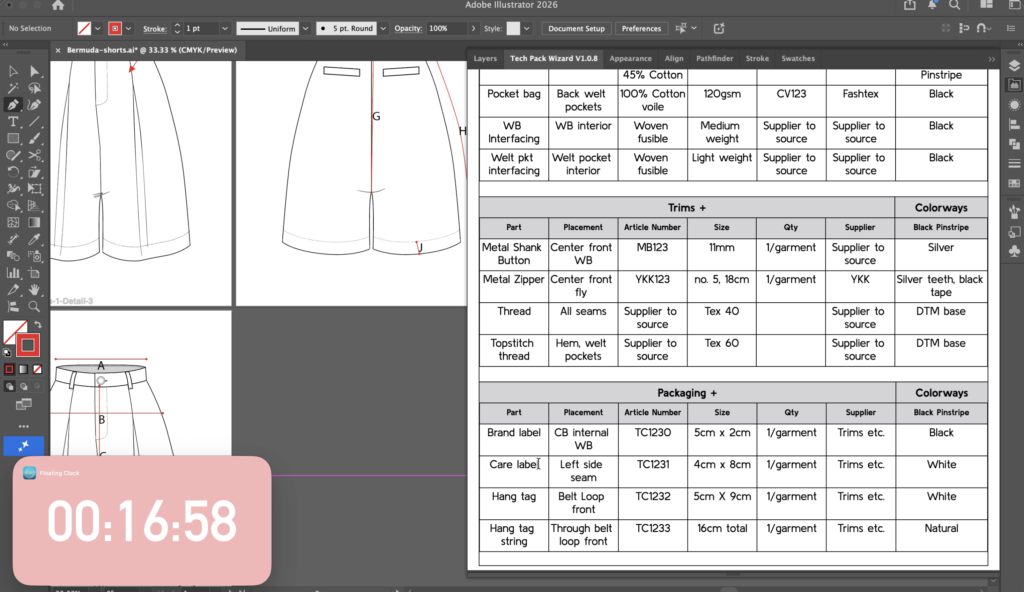
It took me 17 minutes to create a tech pack using Tech Pack Wizard plugin in Adobe Illustrator.
After setting up the front and back CADs as Primary Sketches, I started on the construction callouts. Using the Callouts Tool to add 7 detail notes took me less than 2 minutes. TPW took care of formatting the callout lines and placing the text boxes on the artboard. These annotated sketches were also placed onto the Callouts page in the tech pack by TPW. No formatting needed from me.
Next up, I added the POM lines using the Spec tool. In the pop up box, I added the code, POM name, base size measurement, grade rule and tolerance. TPW formatted the POM line, added the Code and used the information I provided in the pop up box to fill out the Graded Specs measurement chart. This process took me less than 4 minutes and not a single formula.
From there I completed the rest of the tech pack pages. Filling out the global header information, adding Primary Sketches to the Style Cover page, importing images of the labels and writing up all labels and packaging information. On the colorways page I added one colorway using my pinstripe repeat swatch. And finally I filled out the text on the Bill of Materials. This process took just over 10 minutes.
The Illustrator and Excel result
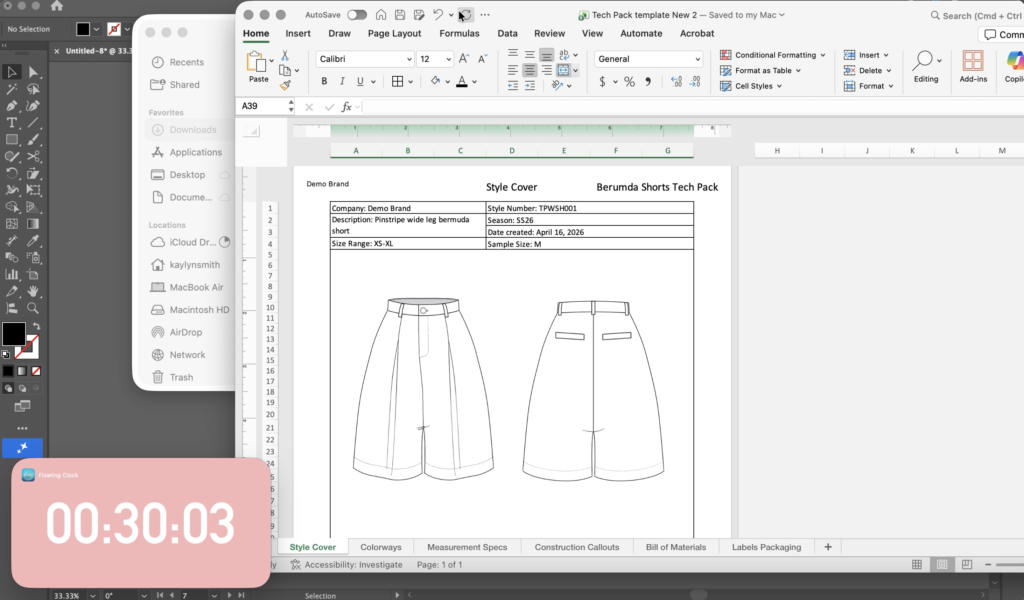
Using the typical workflow of Adobe Illustrator plus Excel, it took me 30 minutes to set up the finished tech pack.
Each tech pack page required some amount of formatting. Whether that was just updating the header and footer, or if that meant changing column sizes, adding or deleting additional columns, resizing and positioning screenshots, etc.
There was also a lot of formatting required in Illustrator. Creating the spec POM lines alone took me over 4 minutes as I needed to add the correct color, stroke size and arrowheads to each line and then separately add the code label. Add to that another 4.5 minutes to set up the Graded Specs page with images and formulas. This is double the time it took with TPW.
This same theme repeats itself for all aspects of the tech pack. Creating the callouts and sizing and positioning the screenshots onto the tech pack page took 4 minutes compared to less than 2 with Tech Pack Wizard.
What the numbers actually mean
17 minutes with Tech Pack Wizard vs. 30 minutes switching between Adobe Illustrator and Excel.
This means:
- 43% faster with Tech Pack Wizard
- 76% longer with Illustrator and Excel
- 13 minutes saved per tech pack
If a designer does 3 tech packs a week that’s 39 minutes saved weekly, roughly 2.5 hours a month, 30 hours a year. None of it spent on design. All of it on admin. That’s where the real impact lands.
And these numbers are calculated on an abridged tech pack version. If it included more callouts and specs as a production tech pack would, the time savings only increase.
What that time is actually costing you
This isn’t just about minutes lost to an inefficient workflow. But what those minutes represent in your work.
Billable hours lost. Mental energy spent on formatting instead of design. The compounding effect of these lost minutes throughout your career.
You could be charging the same flat rate for your tech packs and completing them faster, effectively raising your hourly rate. You could be spending your time in a creative flow, sketching and designing, doing what you love.
Ready to get your time back?
My main goal with Tech Pack Wizard is to give fashion designers back control of their own time. I built this because I lived this frustration for years while freelancing. I know the time suck that is Excel.
I did this experiment to quantify what I already knew innately, not to prove a point.
If you want to get back control of your time, try Tech Pack Wizard for 14 days at no cost.