
Tech Pack Wizard comes with pre-built tech pack pages.
All page titles are fully editable. Simply click on the title and type to rename it.
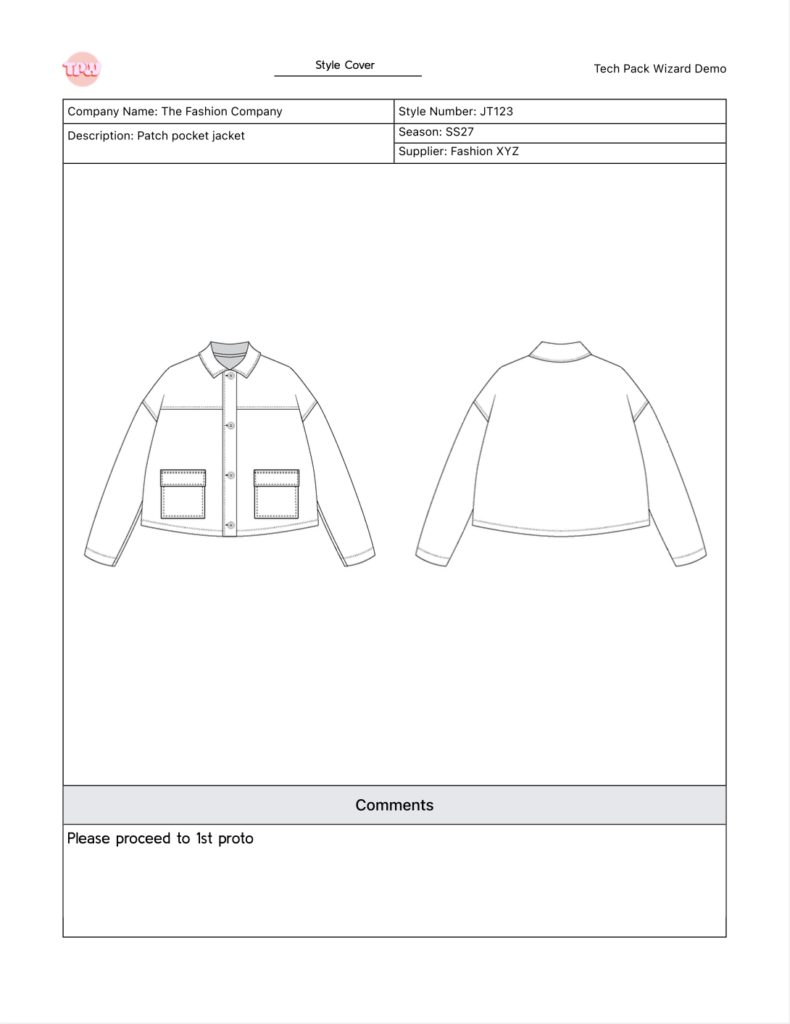
Style Cover
Purpose: Overview and visual reference for the style.
The Style Cover acts as the front page of your tech pack.
You can:
- Add Primary Sketches
- Include general style comments
- Provide a high-level overview for factories or partners
This page sets the visual foundation for the rest of the document.
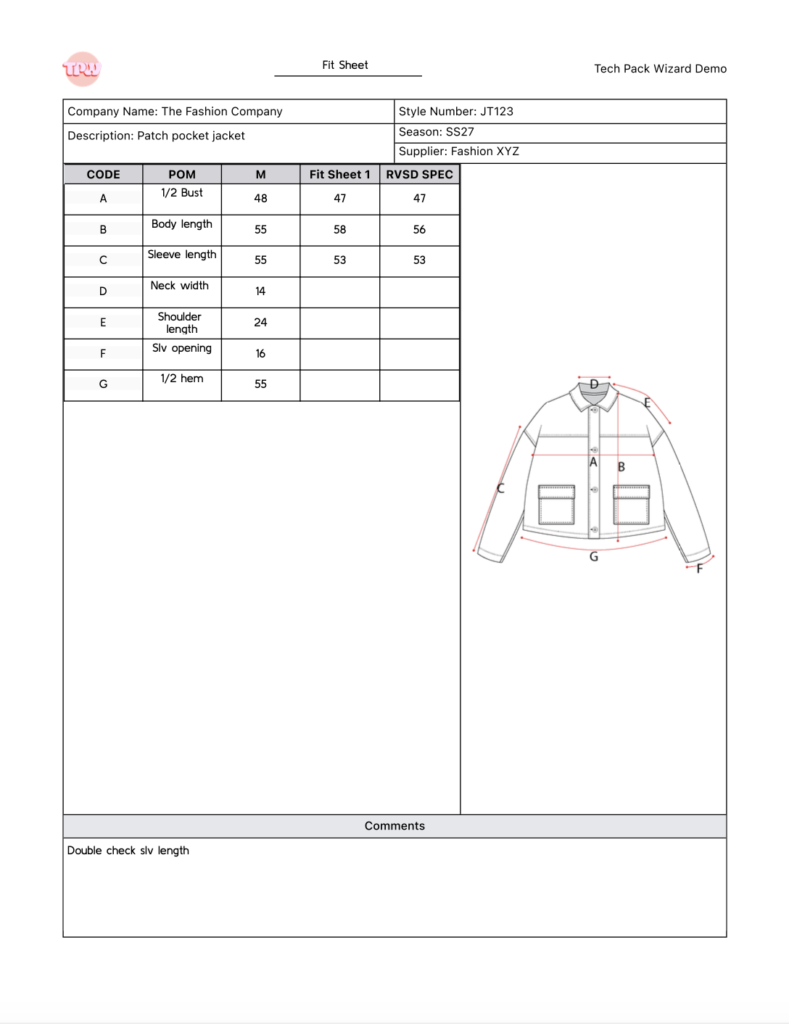
Fit Sheet
Purpose: Fit notes and revision tracking.
When you use the Spec Tool:
- Annotated POM sketches are automatically placed here
- The measurement chart for the sample size appears here
You can:
- Track actual measurements from received samples
- Input revised specifications
- Add comments at the bottom of the page
Revised Specs Behavior
If you enter a revised spec:
- The revised measurement replaces the sample size measurement on the Graded Spec chart
- The Graded Spec chart automatically recalculates using the new sample size value
Multiple Samples
You can create a new Fit Sheet for each sample received:
- Click the Create Copy button at the top of the panel
When you rename the page title of the new Fit Sheet:
- That title becomes the column header for that sample in the chart, e.g. 1st Fit, PP, etc.
Click Delete Copy button at the top of the panel to delete a Fit Sheet.
Graded Specs
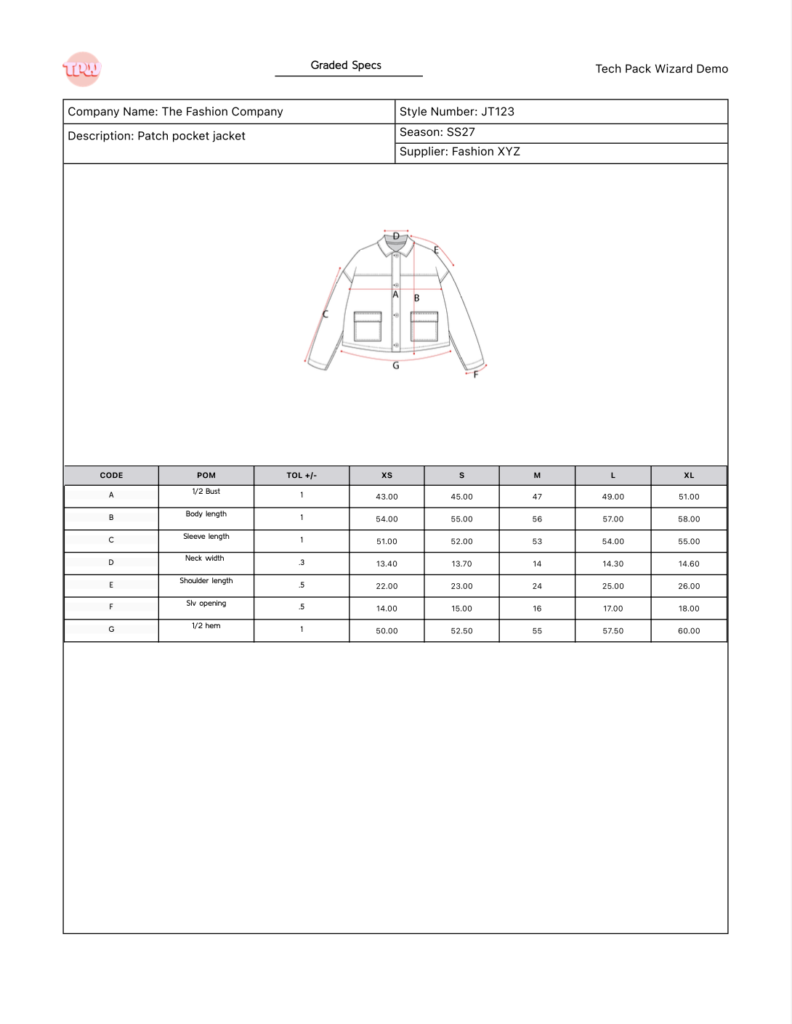
Purpose: Measurement specifications across all sizes.
When you use the Spec Tool:
- Annotated POM sketches are automatically placed here
- The fully graded measurement chart is generated
Editing Measurements
You can edit the sample size measurement directly on this page and other sizes will automatically recalculate. However, if a revised spec has been entered on the Fit Sheet, the Graded Specs page will pull from that revised value and the sample size field becomes uneditable.
The grade rule for each POM is also editable directly on this page. Changing it recalculates the graded measurements across all sizes. This grade rule column does not export to PDF or Excel, so it needs to be reviewed on the live page rather than in an exported file.
Manual Overrides (Split Grades)
Manual Overrides (Split Grades): you may manually override any size measurement for split grades. Overriding a value breaks the automatic grading formula, and the formula cannot be restored once broken.
Labels and Packaging
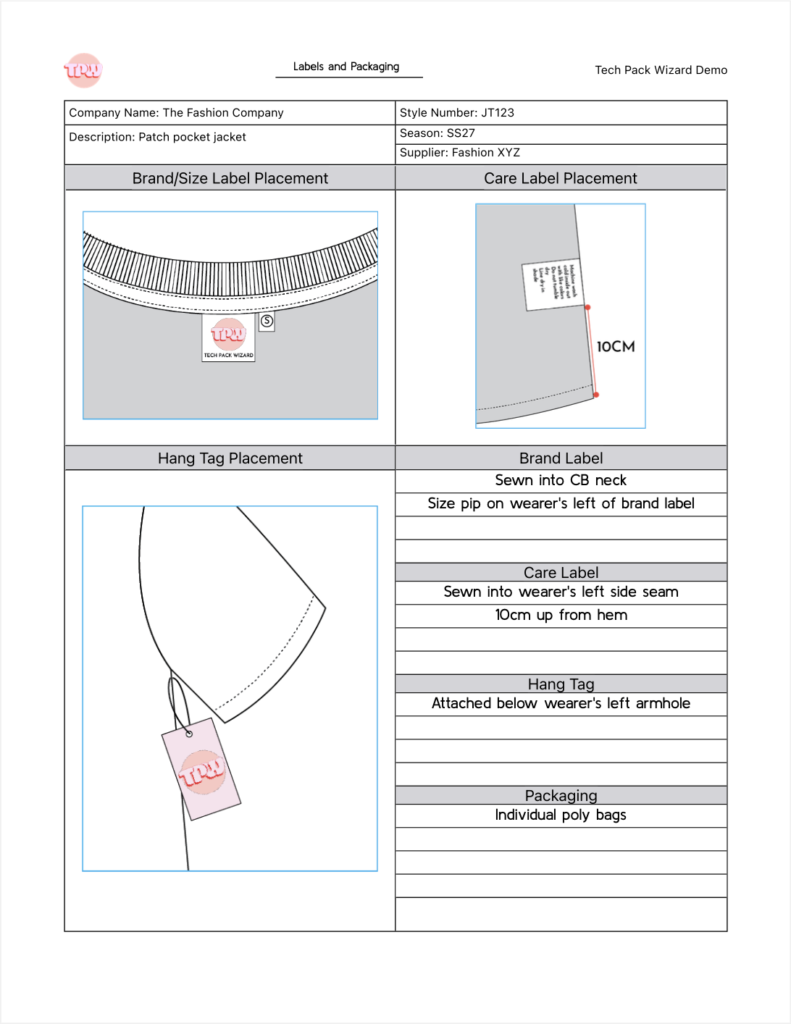
Purpose: Label placement and packaging details.
You can:
- Import images for:
- Brand/Size labels
- Care labels
- Hang tags
- Add written specifications using text boxes
- Provide packaging details and instructions
This page ensures factories have everything needed for trims and final presentation.
Callouts
Purpose: Construction and detail callouts.
When you use the Callout Tool:
- Annotated sketches are automatically placed and formatted on this page
- Maximum of 4 sketches per page
- Additional Callouts pages are added automatically if more than 4 sketches are annotated with the Callouts Tool
There is also a comment box at the bottom of the page.
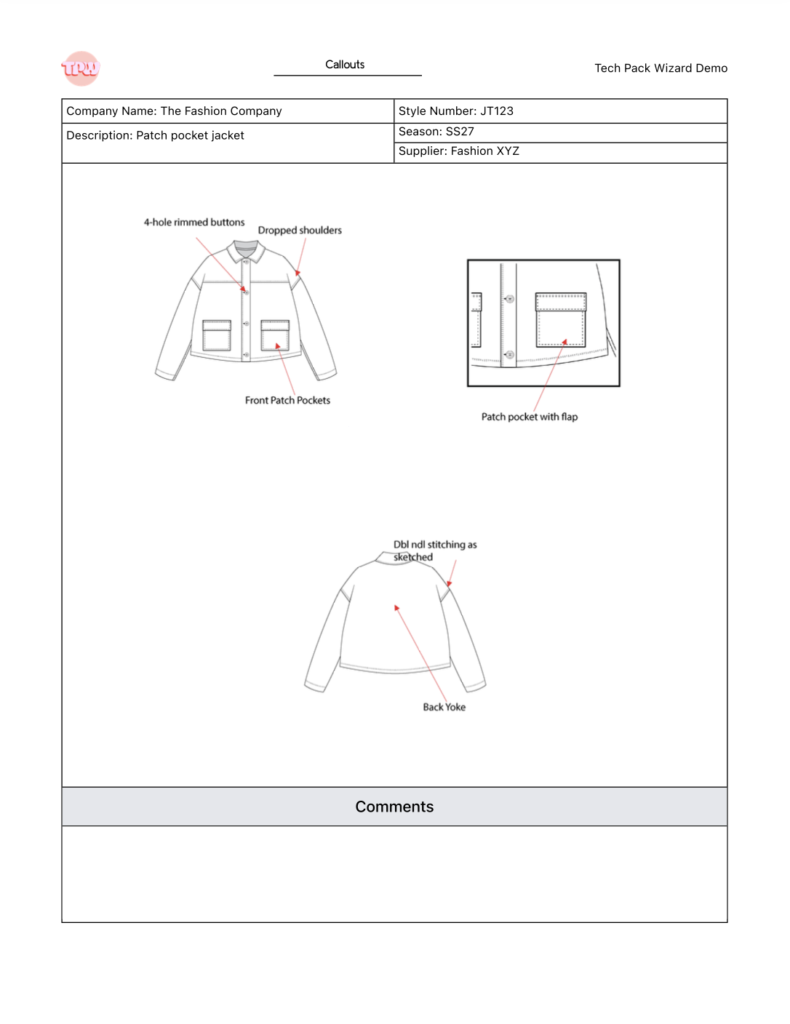
When the Callouts page is selected in the plugin panel, a “Create Blank Page” button appears at the top of the panel. This creates a blank page with the same layout as the Construction Callouts page, but with the ability to add Primary Sketches.
You can use this to add images to your tech pack.
- Create a new Primary Sketch
- Add desire image/images to Primary Sketch
- You can add annotations to this PS, but note that Tech Pack Wizard tools will not work on Primary Sketches. Annotations on Primary Sketches must be done manually
- Add Blank Page in tech pack
- Choose Primary Sketch from dropdown menu
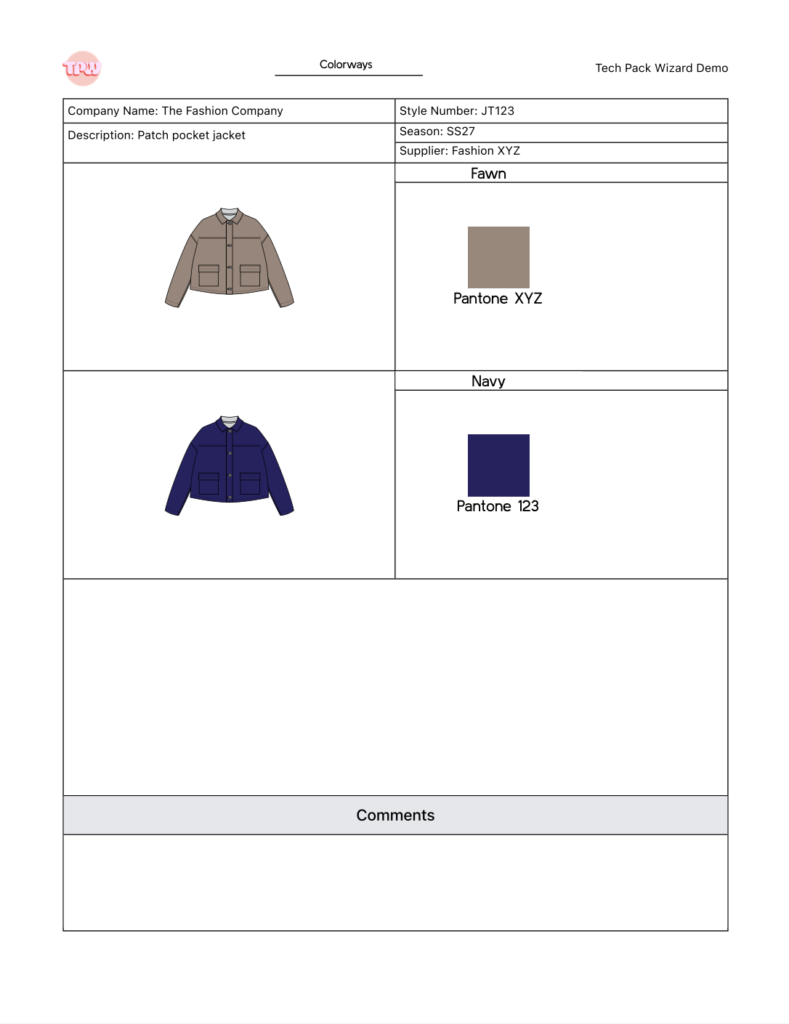
Colorways
Purpose: Color variations for the style.
For each colorway:
Choose a Primary Sketch (e.g., front sketch)
Click on the fill area of each garment part.
- The sketch must already have a fill color (white fill works)
- The Swatch Panel opens
Select a color
Tech Pack Wizard will:
- Create a swatch with an editable name field (for Pantone or reference codes)
You can also:
- Name each colorway
Automatic BOM Integration
Each colorway name:
- Automatically becomes a column in the BOM
- Allows you to specify what color is required for each materials/trims per colorway
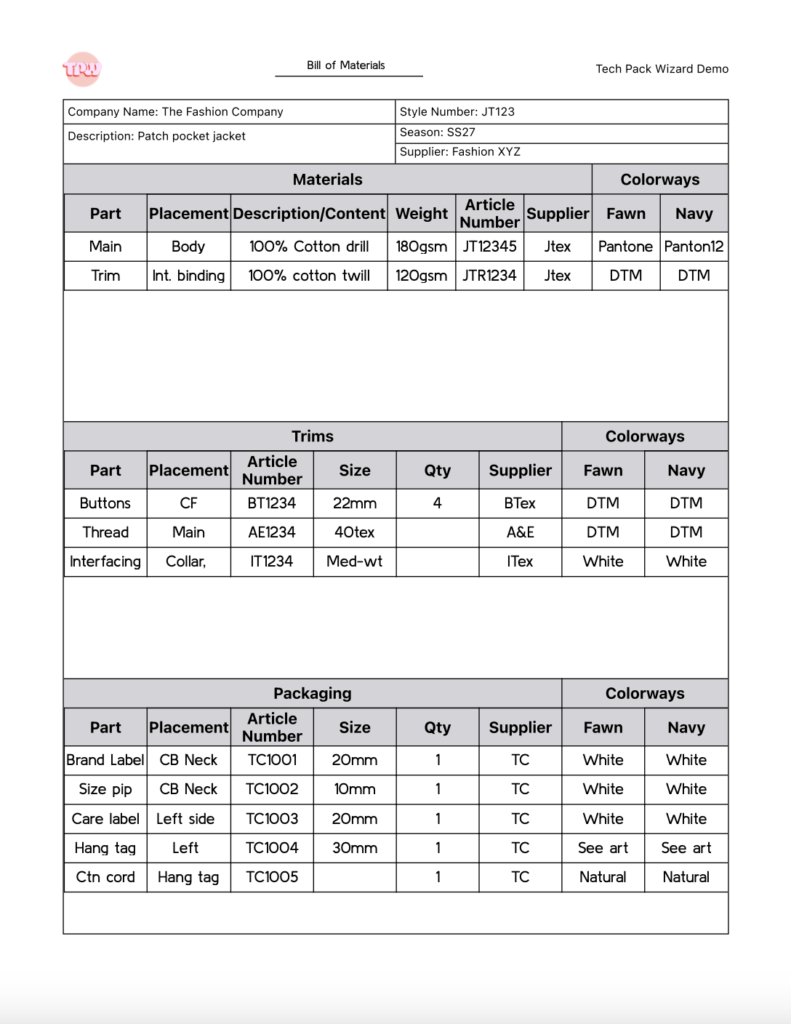
Bill of Materials (BOM)
Purpose: List of all materials, trims, and packaging required.
The BOM is divided into three sections:
- Materials
- Trims
- Packaging
Each section:
- Has a + button to add a new row
- Allows up to 6 lines per section
If you need more rows:
- Click Create a Copy at the top of the plugin panel to duplicate the BOM page
Notes
- Each page title is editable
- All sketches in tech pack pages are live and will reflect any changes after the file is saved, except for on the Colorways page. Sketches on Colorways page are static and will need to be manually updated.
- Fit Sheet, Labels & Packaging and BOM pages all have the option to manually create a second page using the “Create a Copy” button at the top of the plugin panel
- Graded Specs, Callouts and Colorways pages will automatically create second pages as needed