
This guide explains how to add, link, and manage Detail Sketches in the Tech Pack Wizard panel.
Detail Sketches are used to show close-up views or construction details and are always linked to a Primary Sketch.
Step 1: Confirm a Primary Sketch Exists
Before adding a Detail Sketch:
Open the Tech Pack Wizard panel (Window > Extensions > Tech Pack Wizard), sign in and save the document if prompted.
Ensure at least one Primary Sketch exists.
When a file is opened, Illustrator automatically recognizes the first artboard as the first Primary Sketch. If your file opens with an artboard present, a Primary Sketch will already be created.
Detail Sketches cannot be added without an existing Primary Sketch.
Step 2: Open the Detail Sketches Section
Locate the Detail Sketches section in the panel.
This section lists all Detail Sketches currently linked to Primary Sketches.
Step 3: Add a Detail Sketch
In the Detail Sketches section, open the Primary Sketch dropdown menu.
Select the Primary Sketch you want to link the Detail Sketch to.
Click Add Detail Sketch.
A new Detail Sketch will be created and linked to the selected Primary Sketch.
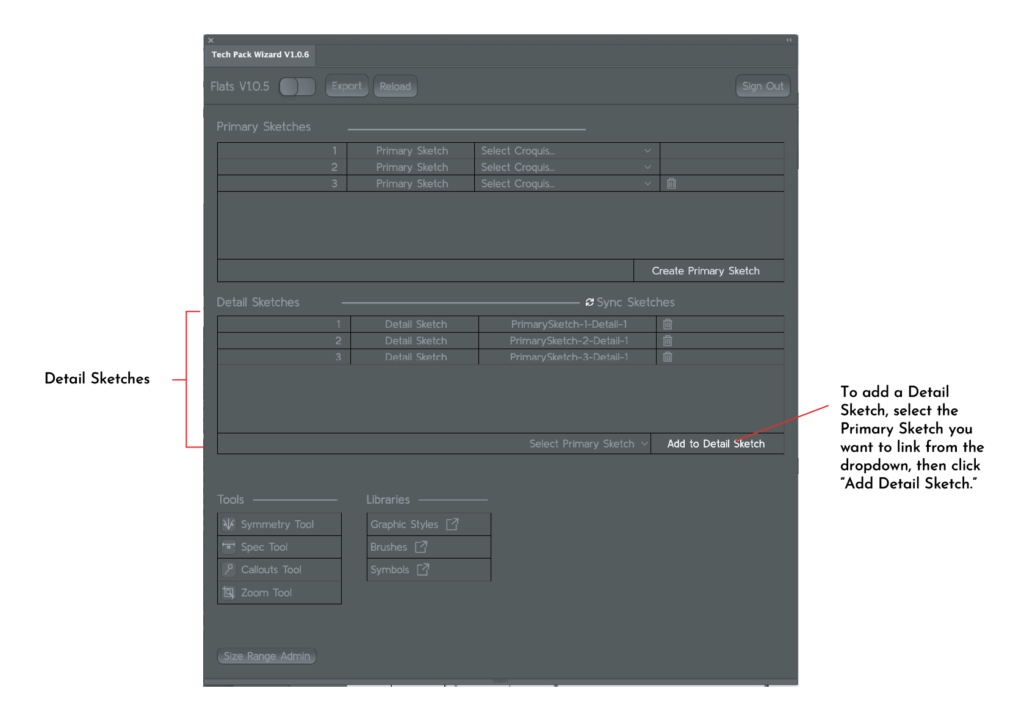
Step 4: Review Detail Sketch Naming
Each Detail Sketch is automatically named based on:
- The linked Primary Sketch
- The order in which the Detail Sketch was created
This naming helps maintain clarity and organization within the tech pack.
Step 5: Add Additional Detail Sketches
Select a Primary Sketch from the dropdown menu again.
Click Add Detail Sketch to create another Detail Sketch.
Repeat as needed.
You can add multiple Detail Sketches to a single Primary Sketch.
Step 6: Delete a Detail Sketch
Locate the Detail Sketch you want to remove in the Detail Sketches section.
Click the Delete icon next to the last added Detail Sketch for that linked Primary Sketch.
- Be sure to check the Detail Sketch name carefully to ensure you have chosen the correct sketch to delete. This action cannot be undone.
Only the most recently added Detail Sketch for each Primary Sketch can be deleted.
Deleting a Detail Sketch does not affect the linked Primary Sketch.
Next Steps
After adding Detail Sketches, you can:
- Use sketching tools to draw and annotate details
- Add specifications and callouts
- Manage size ranges
- Export the tech pack when complete
Refer to the corresponding Help Center guides for step-by-step instructions on each task.
Notes
- Each Detail Sketch must be linked to a Primary Sketch.
- Deleting a Primary Sketch also removes any linked Detail Sketches.
- Detail Sketches are used for annotated sketches, including POMs with spec lines and construction callouts.