
Step 1: Open the Tech Pack Wizard Panel
Open Adobe Illustrator.
Open the document you want to use for your tech pack, or create a new document.
If the Tech Pack Wizard panel is not already visible, open it by going to
Window > Extensions > Tech Pack Wizard.
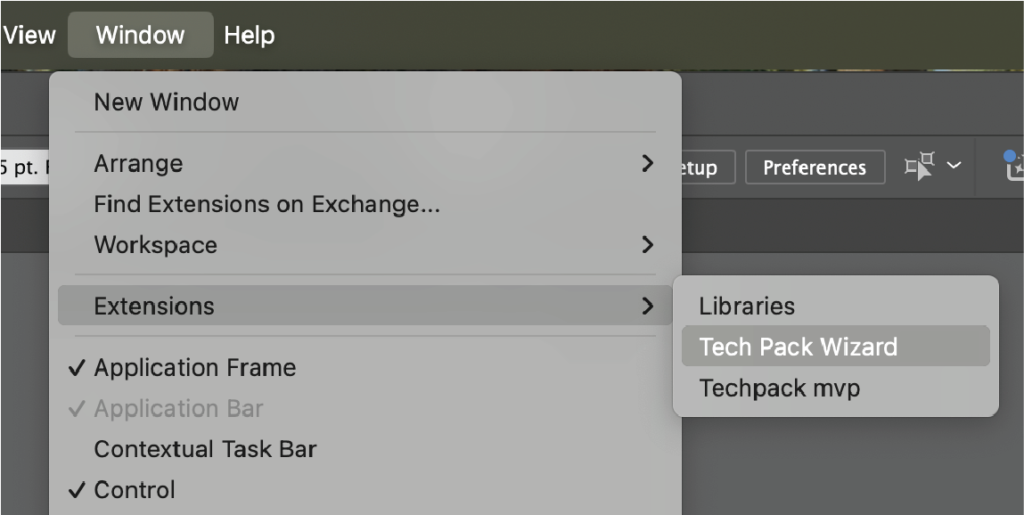
Step 2: Sign In and Save the File
When you first open the plugin, you will be prompted to sign in to your account.
Enter the email address and password you used when signing up for Tech Pack Wizard.If you are starting with a new document, the plugin will prompt you to save your file.
Name and save the file as desired.
Step 3: Open the Tech Pack Tab
Switch to the Tech Pack view using the toggle button at the top of the panel.
In the panel navigation, click the Tech Pack tab.
This tab contains the general header information for the tech pack.
Step 4: Add Page Header Information
In the Page Header Information section:
(Optional) Click Choose File to import a logo.
Enter a Tech Pack Title.
This information appears at the top of the tech pack and helps identify the style.
Step 5: Enter Tech Pack Information
In the Tech Pack Information section, enter the relevant details for the style:
- Company Name
- Description
- Style Number
- Season
- Supplier
These fields are optional but recommended for clear identification and reference.
Step 6: Navigate Between Tech Pack Pages
Each tech pack page is organized into its own tab. Click the tabs along the top of the panel to move between sections, such as:
- Style Cover
- Fit Sheet
- Graded Specs
- Labels and Packaging
- Callouts
- Colorways
- BOM
All pages belong to the same tech pack and remain connected within the panel.
Step 7: Save Your File
Save your Illustrator file regularly to ensure all tech pack information is retained.
Next Steps
Once your tech pack is created, you can:
- Add Primary Sketches
- Link Detail Sketches
- Add specifications and callouts
- Export the tech pack when ready
Refer to the corresponding Help Center guides for step-by-step instructions on each task.